Basic Linux Commands
OS, Kernel & Shell
Operating System
System software - manages hardware and software resources
Types - Unix, Unix-like, Microsoft Windows, BSD, etc.
Eg: Windows 11, Linux (Unix-like), MacOS (Unix)
Linux is mostly open source and has many variations - Distributions or Distros - Red Hat (Commercial), Fedora, Debian, Ubuntu, Android, Mint, ChromeOS, etc.
Ubuntu is debian based distro developed by Canonical Ltd. and it has many variants - Lubuntu, Xubuntu, Ubuntu Budgie, Ubuntu Mate, UbuntuDDE, etc.
Fedora is the upstream source for RHEL (Red Hat Enterprise Linux)
Kernel
A computer program at the core of an OS (a portion of OS code), resides in the memory and provides interactions between hardware and software components.
Responsible for executing the programs and allocation of memory, resources, etc.
Types - Monolithic kernels (Linux), Microkernels (Minix 3), Hybrid Kernels (Windows, MacOS), etc.
Shell
An interface between user and kernel.
It allows a user to give commands to the kernel and receive responses from it.
Execute programs and utilities on the kernel.
Types - Bourne Shell (sh - developed by Steve Bourne, AT&T Bell Labs), GNU Bash, C Shell (csh), Korn Shell (ksh), Z Shell (zsh)
Bash
- GNU Bourne-Again Shell
- Designed based on the Bourne Shell (sh)
- Unlike sh, it allows to recall the previous commands and edit them, if required.
- Adds useful features from various shells like ksh and csh
- Path:
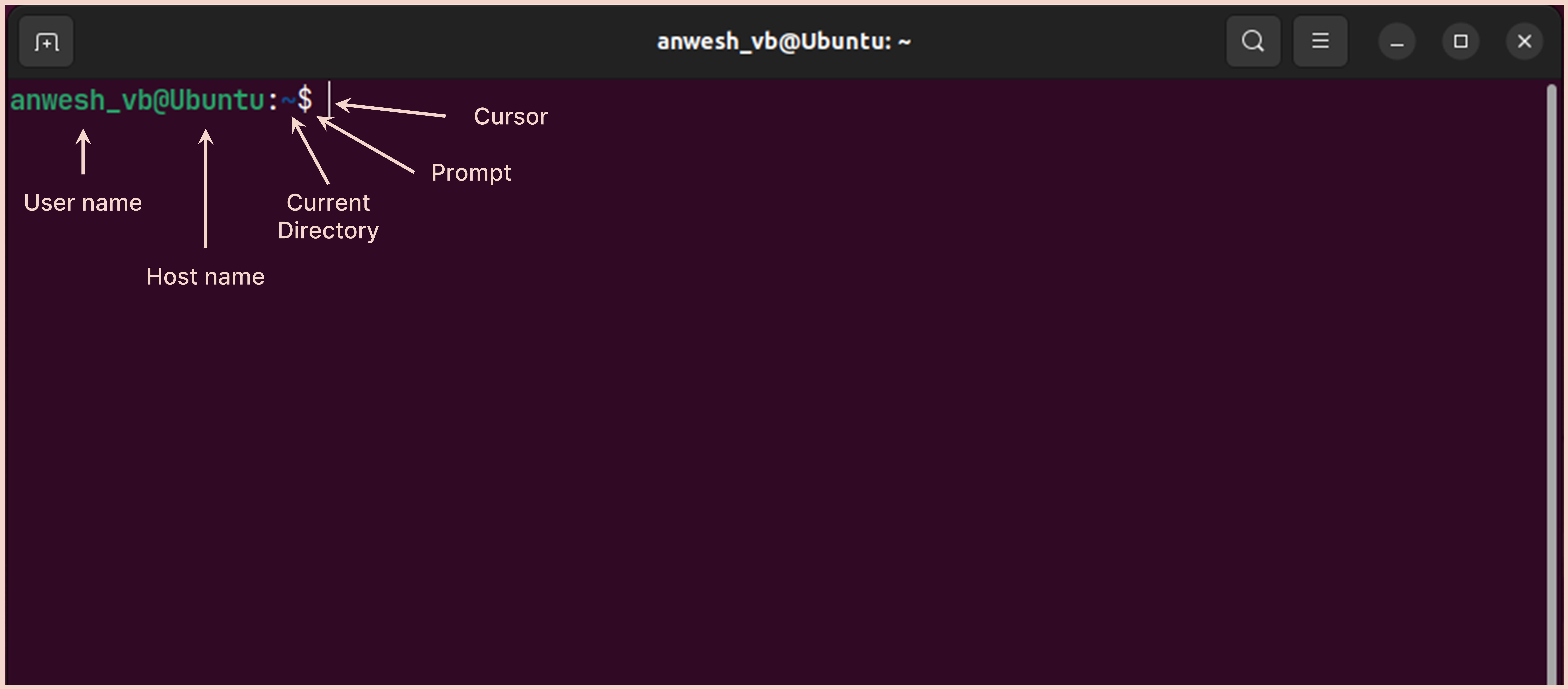
/bin/bash - Shortcut to open Terminal: Ctrl + Alt + T
Basic Commands
| Command | Description |
|---|---|
pwd |
Print working directory - gives the path of current working directory, where the terminal is open ~ Home directory / Root directory |
ls |
Lists contents of the current directory -l Long list format output -a All contents including the hidden items -t List as per the time modified -h Human readable memory units. Used along with -l Item permissions - drwxr-xr-x - can be modified with chmod
|
cd |
Change directory Use "TAB" key to autocomplete .. Parent directory
|
mkdir |
Make Directory |
touch |
Create new file |
cp |
Copy a file from source to destination |
mv |
Move a file from source to destination Also used for renaming files |
rm |
Delete a file -dir Remove an empty directory (Alternative command: rmdir)-r Remove directories and their contents recursively
|
head |
View the first 10 lines of a file -n Specify the number of lines to display
|
tail |
View the last 10 lines of a file -n Specify the number of lines to display
|
cat |
View the full contents of a file Also used to concatenate (merge) multiple files into one |
split |
Split files based on a specific number of lines (default is 1000 lines per file) -l 4 Splits with 4 lines per output file
|
| Redirection |
> Redirects its input into a new file. Always overwrites an existing file < Reads from a file and uses it as input >> Same function but appends to a file, instead of overwriting | Chain multiple commands
|
echo |
Prints an input to the terminal -e Enables backslash compatibility
|
--help |
Shows the instructions on how to use a command |
history |
Displays the terminal history. Otherwise, Up (↑) and Down (↓) arrows can be used to navigate through the previous commands one at a time |
clear |
Clears the terminal screen |
which |
Displays path of a command -a To see all the installations/paths of that command
|
wc |
Gives line count, word count, and character count by default -l only line count -w only word count -m only character count
|
grep |
Checks for an input PATTERN and displays the lines having that PATTERN -i case insensitive -c counts the lines having that PATTERN
|
sed |
Replaces certain pattern with another pattern Eg: sed -i 's/:/_/g' Contigs.fasta -i in-place substitution (Substitution occurs in the original file itself) 's/:/_/g' Substitute ":" with "_" in all instances
|
lscpu |
Details of the system processor |
wget curl |
Download content from internet using terminal |
| Installing Software Packages |
Ubuntu: sudo apt install package_name Fedora: sudo dnf install package_name
|